Let your AI agent capture its changes with the Playwright CLI

A picture is worth a thousand words, also when you're reviewing a pull request. In our project, the coding agent uses the Playwright CLI to record and screenshot its UI changes, verifies them, and attaches them to the pull request.
The ideas and experience in this post are my own. AI helped with the writing and the examples, and I reviewed and edited the article before publishing.
Agents write code faster than we can review it. In our project, most of the pull requests are now opened by an agent. The diff helps us to review the technical implementation, but to verify that the functionality works as expected, someone still had to pull the branch locally, start the application, and click through the flow to see the changes in action. Even with a preview environment, the reviewer still has to click through the flow manually to see the result.
We moved that step to the agent. When a change affects the UI, the agent starts the application, records the flow, and captures screenshots of key states. It inspects these captures before presenting them to the developer and attaching them to the pull request.
In this blog post, I share why we're doing this, how the Playwright CLI makes it possible, and what it looks like in practice.
Why
Our pull request template has a "Proof it works" section, where the author shows how they verified the change with screenshots and recordings. This encourages the author to check their own work before requesting a review and gives the reviewer concrete evidence to assess.
For UI changes, a screenshot says more than a paragraph claiming that the change works, and it's also more fun. The reviewer can see the result at a glance, without having to imagine it from a description or run the application.
This helps the reviewer to do their job. The reviewer can focus on the review itself: does the change do what was asked, does it look right, and where do they need to take a closer look?
At first, we only asked for screenshots. Later, we also added recordings to show the steps between the different states, e.g. what was clicked, what appeared, and in which order. Recordings expose bugs that a still image can miss, like jumping focus, a flash of empty content, or a dialog that doesn't show. They also provide more context for the reviewer, and make it possible to share entire flows with others.
The captures also help the agent catch its own mistakes. They can reveal issues that tests miss, even when all tests are green. We now require the agent to inspect every screenshot before presenting it, so it can fix these issues before review.
This is the same division of work that I described in Keep Agentic AI Simple: the agent implements, and the team verifies. The captures make the verification cheaper for the team, and keep the agent honest. As a bonus, the recordings also give us something concrete to show to stakeholders, which ties in with Sprint Zero is about building momentum.
Playwright CLI
As you might know, I'm a big fan of Playwright. The Playwright CLI makes this workflow practical: it's built for coding agents, drives its own browser, and returns compact text that helps the agent understand each action's result.
Besides driving its own browser, the CLI can also attach to a browser that's already running, for example your own Chrome or Edge, using the Playwright extension or the Chrome DevTools Protocol (CDP). It also gives the agent access to the internals of the browser, such as the console messages, network requests, cookies, and the local and session storage. This makes the CLI useful for more than capturing changes, for example to let the agent debug a failing flow, or to mock an API response with the route command.
In Vibe testing with Playwright, I explored the Playwright MCP server. Nowadays, I prefer the CLI. As I mentioned in Keep Agentic AI Simple, MCP servers bloat the context window of the agent, while a CLI tool in combination with a skill only loads what's needed. The agent already knows its way around CLI tools, which also makes the workflow faster.
Installation
We install the CLI as a development dependency, so every developer and every agent uses the same version:
The package also ships with an Agent Skill that teaches the agent how to use its commands. Install it in the repository with:
This command installs the skill instructions and reference guides locally in your repository, so supported agents can discover and load them.
Example
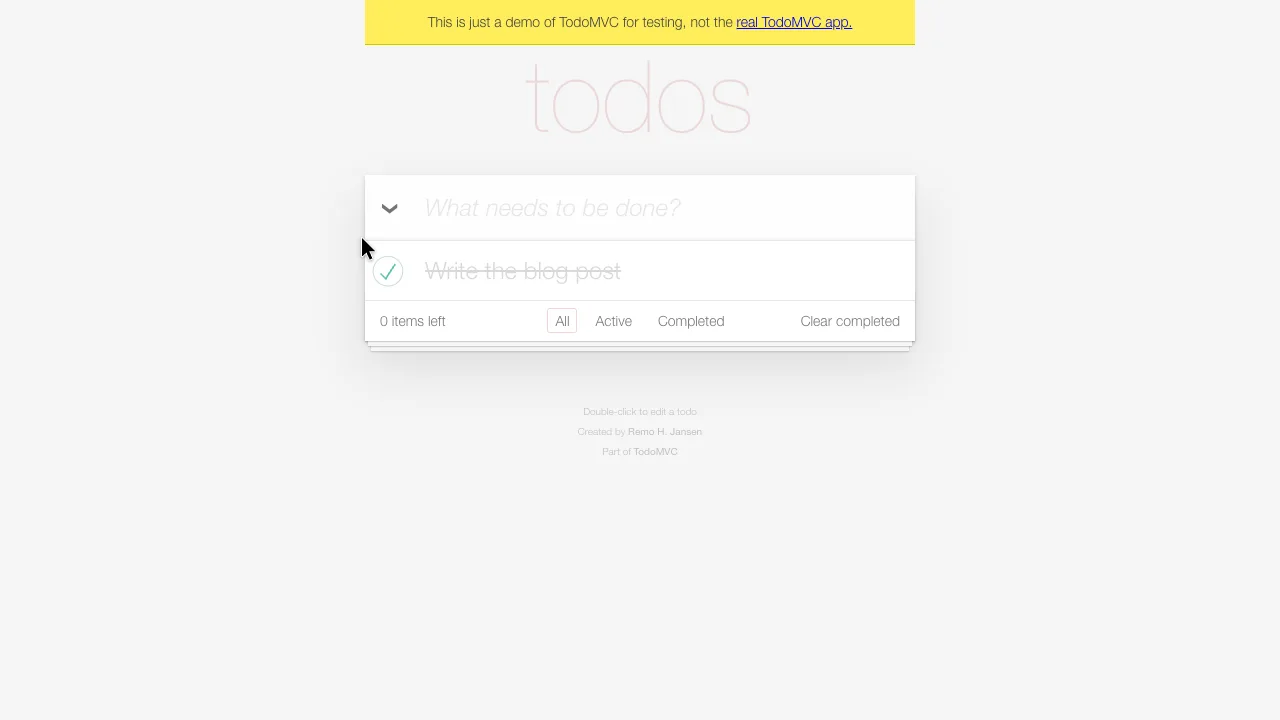
Let's take a look at an example. Using the TodoMVC demo, we record a small flow with the same recipe that our agent follows. The recording starts before the first step, every action gets a callout, every step is announced with a chapter card, and the end of each step is captured in a screenshot.
The video commands below use the Screencast API to record the agent's browser interactions.
The agent uses the accessibility snapshot to identify page elements and obtain refs for interacting with them. The snapshot describes the page as structured text, including elements such as buttons, textboxes, and checkboxes, along with their names and states.
In this flow, the initial snapshot identifies the textbox as e8, which the agent uses in the fill command above:
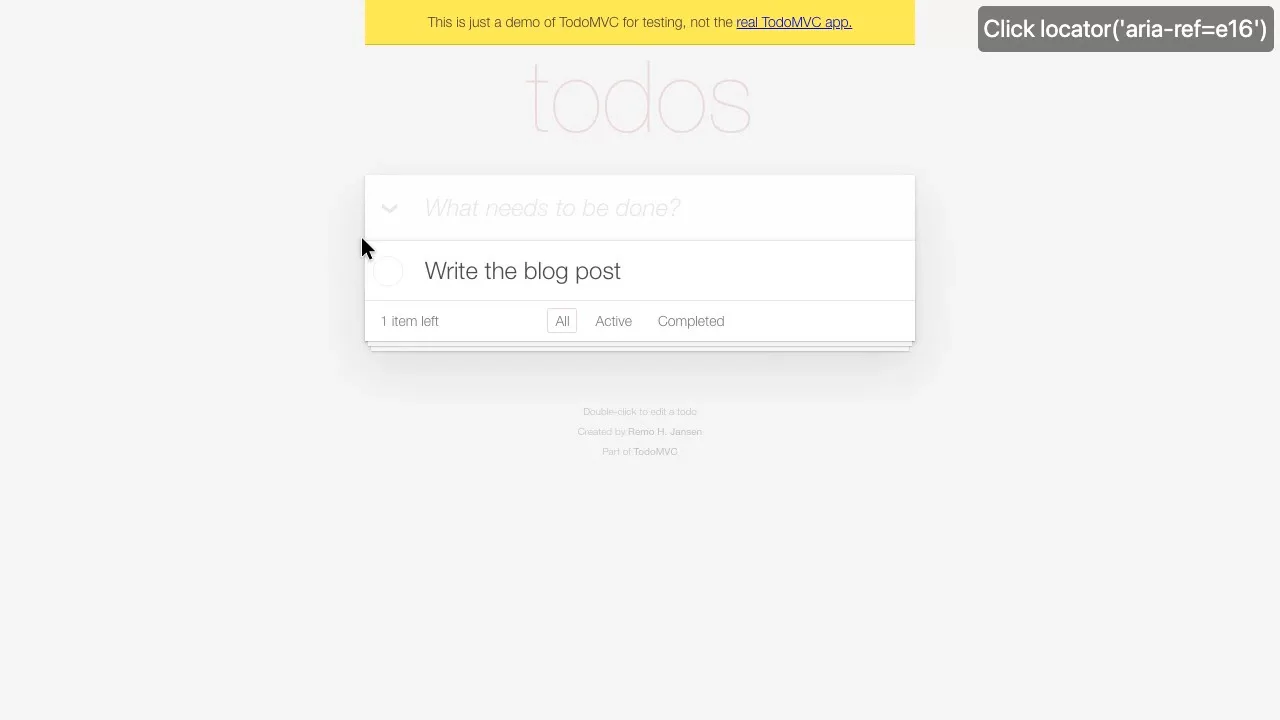
After adding the todo, the agent reads the updated snapshot to find the checkbox, which is e16 in this session.
The snapshots guide the agent through these interactions, and the recording lets the reviewer follow along. Each chapter opens with a card over a blurred page to explain what's about to happen and what to look for.
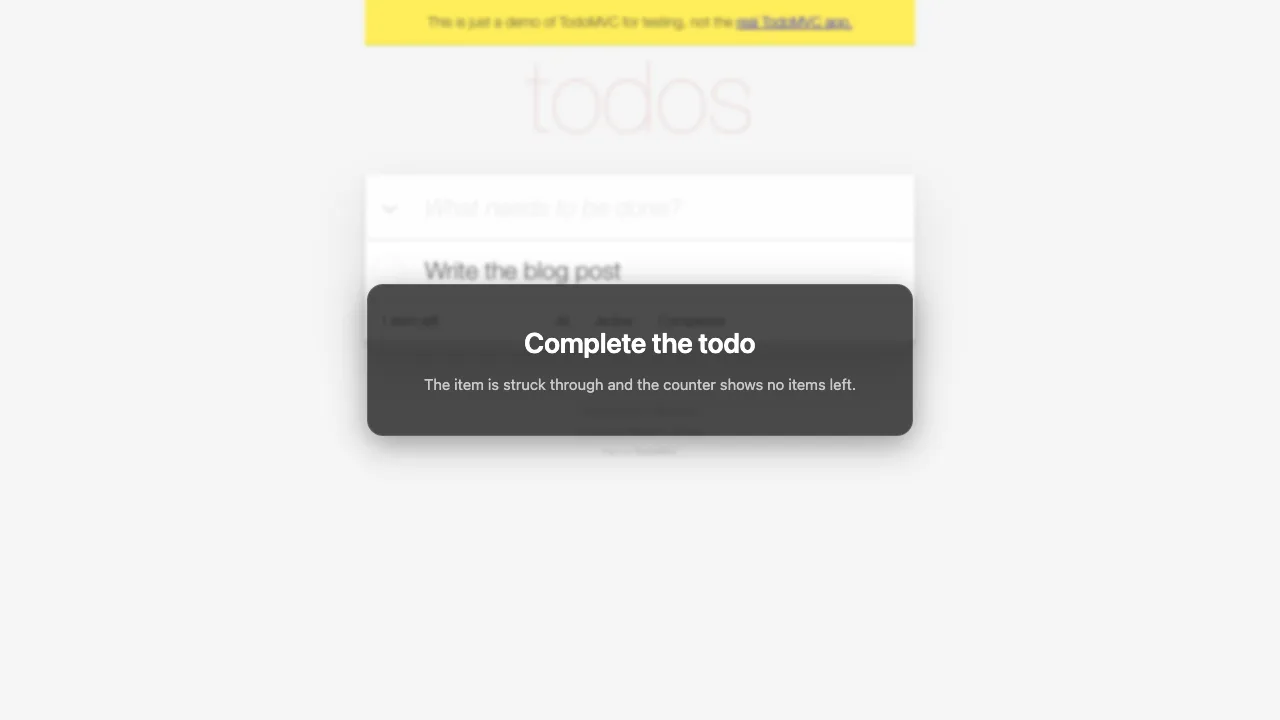
During each chapter, annotations show what the agent is doing. A callout names the action, the target is highlighted, and an animated pointer moves to it.
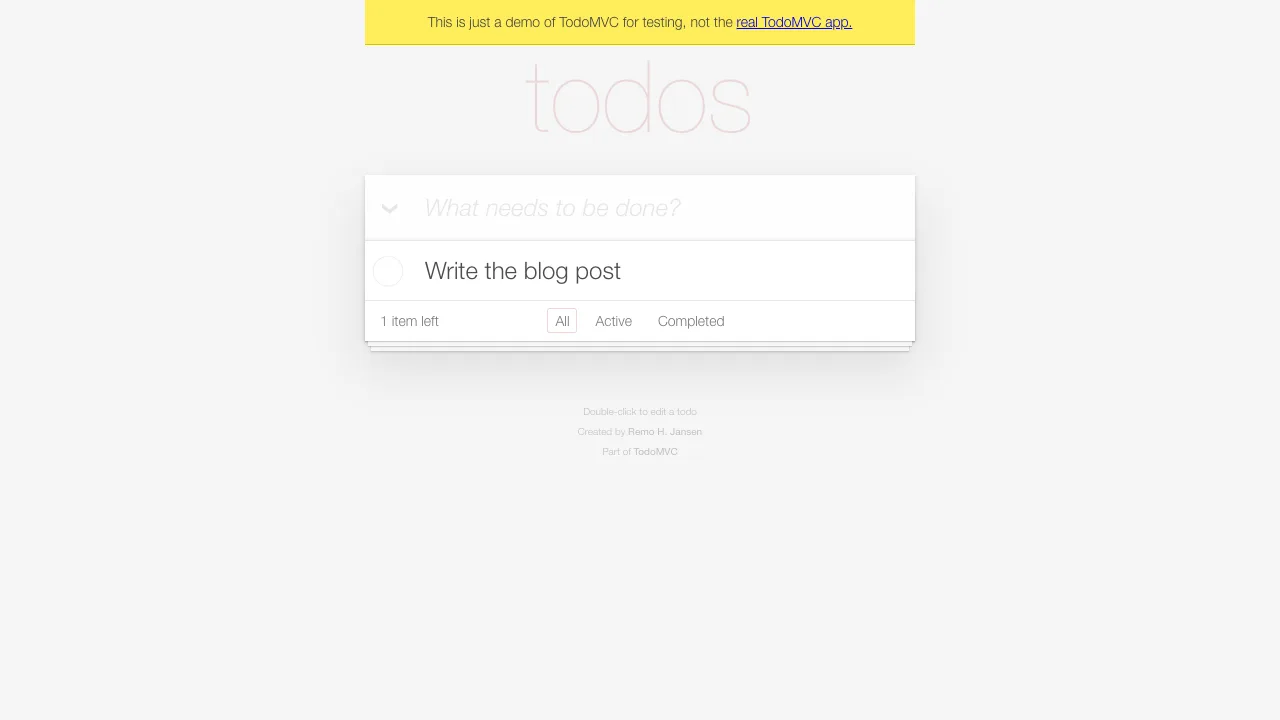
At the end of each chapter, the agent takes a screenshot of the result. These screenshots give the reviewer a closer look at each state and let the agent check how the page looks before attaching them to the pull request.
Keep recordings short
The browser stays open between commands, but each CLI command is a separate process that connects to it, which adds a pause to the recording after every action. For longer flows, use run-code --filename=<script>.js with page.screencast to control the pacing. The skill that ships with the CLI recommends the same for recordings that serve as proof of work. The same flow takes about 10 seconds in a single script, including action callouts, compared to 23 seconds with separate commands:
If you want to run this example manually, save the function below as record-todo.js.
The recording script
record-todo.js
Then run these commands from the project root:
Into the pull request
As part of opening the pull request, the agent uses the GitHub CLI to upload the screenshots and recording, without committing them to the repository. The agent handles the steps below automatically, so there's no need to prepare the description or upload the captures manually.
First, the agent writes the pull request description to a temporary Markdown file, /tmp/pr-body.md. It includes the screenshots using their local file paths, with alt text that explains what to look for:
Next, the agent creates the pull request with the following command. The --body-file option reads the description from that Markdown file, and each --attach option uploads one of the captures:
For the two screenshots, the CLI replaces the local paths in the description with the uploaded URLs, keeping the alt text. The recording isn't mentioned in the Markdown file, so the CLI adds it at the end of the description, where GitHub displays it as a video player.
For more details, see Attaching files with GitHub CLI. PNG, JPEG, GIF, SVG, MP4, MOV, and WebM files are supported. To add files to an existing pull request, use gh pr edit <number> --attach <file>.
Making it the default
To make this a part of every UI change, we added the capture workflow to the AGENTS.md file, and the evidence requirements to the pull request template. When the agent can't create the captures, it needs to report this as a limitation.
These are our project-specific instructions in AGENTS.md (slightly shortened):
AGENTS.md
And this is the relevant part of the pull request template, which is the same for humans and agents:
.github/pull_request_template.md
Lessons from our project
Here are a few things we ran into while setting this up, which you might run into as well:
- Signing in. Our normal sign-in flow uses Entra ID with multi-factor authentication, which makes it unsuitable for unattended captures. To solve this, an environment variable starts the application in end-to-end mode, which is the same mode our Playwright tests use. This mode only swaps the identity provider for an in-repo stand-in that signs the browser in as a test user. Everything else stays real, including the API and a throwaway database.
- Checking the video. To inspect a recording with image tools, the agent extracts a few frames with ffmpeg. When ffmpeg isn't available, the agent can open a small HTML page with a
<video>element, seek to a few points in time, and take a screenshot of these frames. This way, it can verify the chapter cards and callouts, as well as the final states. - Pacing. Chapter cards, timed overlays, and action callouts already wait for their duration. Our first recordings added extra pauses after them, which resulted in recordings that were mostly waiting. Only add a pause when the viewer needs time to inspect a completed state.
- Preserving captures. Running the end-to-end test suite empties the test results folder, including the captures. Create the captures after the test run, or copy the files to another location first.
- Content Security Policy. The chapter cards and callouts are injected into the page using inline styles, which are blocked by our nonce-based CSP. That's why the review browser is opened with the config file below. Its
contextOptionsaccept any browser context option. We setbypassCSP, together withignoreHTTPSErrorsfor the development certificate, and a viewport of 1280 by 720.
.playwright/cli.config.json
Benefits
Less setup for reviewers. I can review a UI change from the pull request, on any device. The alt text tells me what to look for, the screenshots show the states, and the recording shows the flow. For small changes, I might not even look at the code.
Earlier feedback for the agent. Inspecting the captures complements the tests, and gives the agent a chance to catch visual mistakes before the review. It's the same feedback loop as the logs and traces in Improve your AI coding agent with runtime context from Aspire MCP, but applied to the UI.
Reusable evidence. Recordings can be shared with stakeholders. We can also reuse the same captures in release notes and demos.
The best part is that this workflow doesn't need extra infrastructure. The CLI sits next to our Playwright tests, and the attachments live on GitHub. The shared instructions set the same expectations for humans and agents, including reporting a missing capture.
For a broader approach to reviewing agent-written code, I recommend reading How the Claude Code team does code review. Their risk-based review resonates with how our team works and, in combination with the visual captures, helps us focus our attention where it matters most. Give it a read!
Conclusion
Screenshots show the outcome, recordings show the flow, and inspecting both helps the agent catch mistakes before review. For small changes with little risk, this evidence may be enough to review the change without looking at the code. When a closer code review is needed, the captures provide context by showing how the change behaves in the running application.
If you want to try this out yourself, install the Playwright CLI, make sure the agent can sign in, and add the workflow to your AGENTS.md file and pull request template.
For me, this means less time spent on setting up and clicking through the application, and more time to focus on what matters most: delivering value.
Related articles
- Sprint Zero is about building momentum
- Improve your AI coding agent with runtime context from Aspire MCP
- Keep Agentic AI Simple: A Practical Workflow for Software Development
- Vibe testing with Playwright
Feel free to update this blog post on GitHub, thanks in advance!
Enjoying the blog?
Support my work
If you enjoyed this post and found it useful, consider supporting my work. It helps me keep creating and sharing content like this. Thank you!