A minimal way to integrate Aspire into your existing project


Did you know that you don't need to rebuild your solution to adopt Aspire? Instead, start small and improve over time. Let's take a look at how to integrate Aspire into your existing project with minimal changes, allowing for a gradual adoption of Aspire's features.
We adopted Aspire in our (.NET 8) codebase without touching our existing architecture, and it worked.
Aspire isn't just for new projects. Existing projects can also benefit from Aspire's features. If you have an existing project and want to integrate Aspire, you don't have to go all-in from the start. In this post, we'll take a look at a minimal integration approach that lets you gradually adopt Aspire without having a big impact on the rest of your existing codebase.
Aspire has many great features, but you don't have to use all of them at once. Recently, our team started integrating Aspire into our existing project (on .NET 8) by only creating an Aspire AppHost project to run all of our projects with a single command. Doing this also allowed us to migrate from Project Tye without making significant changes to our codebase and build processes right away. This gave us a chance to understand how Aspire works and how it can improve our development process.
What "minimal" means in this post
This post focuses on the smallest useful integration:
- Add an Aspire
AppHostproject. - Register existing .NET and Angular projects in the
AppHost. - Run everything from one place.
It does not yet cover service defaults, containers, secrets migration, or deployment.
Creating the AppHost project
To get started with the bare minimum, add a new project using the Aspire AppHost template to your solution.
You can do this in your IDE by right-clicking on your solution, selecting "Add" > "New Project", and then searching for "Aspire AppHost". Follow the prompts to create the project. The project will be created with an empty AppHost file that serves as the entry point for your application.
AppHost.cs
Alternatively, you can use the Aspire CLI to create the project with the following command. The command runs a wizard that guides you through creating a new Aspire AppHost project and asks which projects you want to include.
Sadly, the command didn't work for our project at the time of writing (I suspect this is due to our current SDK/tooling combination on .NET 8), but it's still worth trying in your environment.
Adding .NET projects to the AppHost
Our project has multiple ASP.NET projects, and we wanted to run all of them with a single command. To do this, we started registering them in the AppHost file using the builder.AddProject<T>() method (you also need to add references to these projects in the AppHost project file).
AppHost.cs
If you have a lot of projects, adding all projects manually can be boring. In our experience, we found that Copilot is perfectly fine to wire up the AppHost file for us.
Adding Angular projects to the AppHost
Besides our ASP.NET projects, we also have Angular projects in our solution. We wanted to run those from the same place, so we added them to the AppHost too.
Before adding an Angular project to the AppHost, add the Aspire.Hosting.JavaScript package to the AppHost project.
The next step is to register the Angular project(s) in the AppHost file using the builder.AddJavaScriptApp() method.
AppHost.cs
Running the AppHost
Now that we have our projects registered in the AppHost, we can run the AppHost - just as any other project - to see the results. When you run the AppHost, it will start all of the registered projects and provide you with a dashboard.
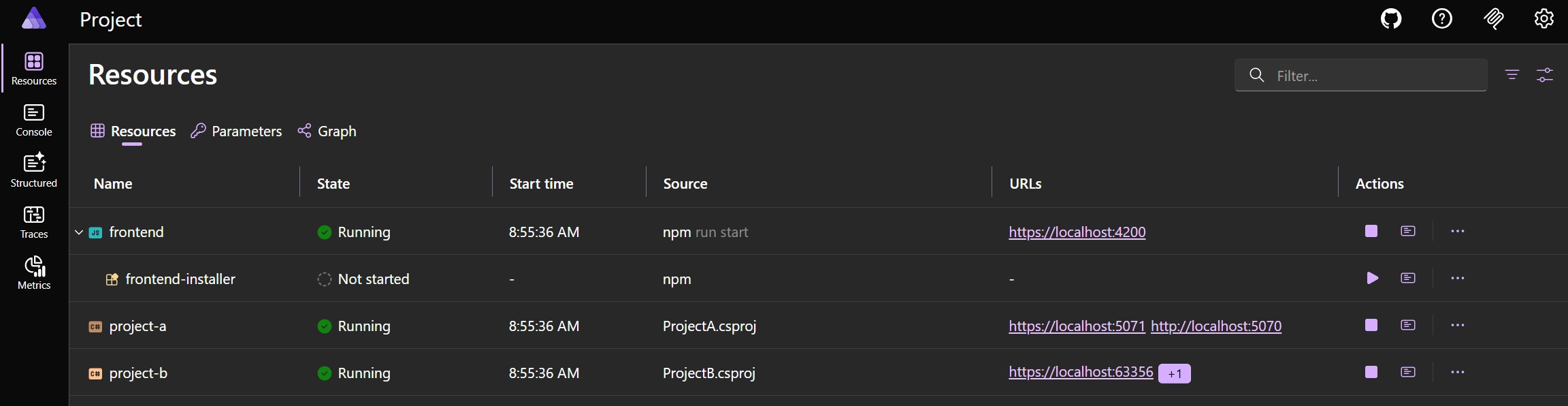
Here, we can also see that JavaScript projects include an installer resource that installs npm dependencies for those projects, so you don't have to worry about that anymore. You can opt out of this behavior by setting the install property to false in the WithNpm() method, for example: WithNpm(installCommand: "ci", install: false).
Within the dashboard, the only working feature for us right now is the application logs.
Next steps
This is just the beginning of what you can do with Aspire. With this minimal integration in place, you can start exploring more Aspire features as you become more comfortable with it, such as:
- Enabling Aspire's distributed tracing: With Aspire's distributed tracing, you can get insights into how your different projects are interacting with each other, and identify any performance bottlenecks or issues in your application. This can be done using a
ServiceDefaultsproject and by configuring existing projects to useServiceDefaults. - Integrating Docker containers: To create an isolated environment for your application, it's possible to integrate Docker containers into your AppHost. This allows you to run your application in a consistent environment across different machines and platforms. For example, you can add a SQL or Redis container to your AppHost.
- Migrating to Aspire's secrets management: With Aspire's secrets management, you can securely store and manage sensitive information such as database connection strings, API keys, and other secrets. This migration will move existing secrets and appsettings to the AppHost.
- Thinking about Release management: It's also possible to use Aspire to generate artifacts to host your application. For example, you can generate a docker compose file containing the entire project (with dependencies), or you can also set up an entire environment within Azure with all the necessary resources to host your application.
Conclusion
Aspire is a great tool to orchestrate and manage your applications. In this post, we've seen that you don't have to go all-in with Aspire from the start and that you can gradually introduce it into your existing project.
My team started with a simple Aspire integration that focuses on one practical outcome: running all projects with a single command from the AppHost. For us, this was a quick and easy way to introduce Aspire.
Through the Aspire dashboard we can already access logs from all our projects in one place. There's also a MCP Server, which will become smarter and better over time, when we enable more features.
From here, we can explore additional Aspire features as we get more comfortable with it and unlock more value without refactoring our existing codebase right away.
Related articles
Feel free to update this blog post on GitHub, thanks in advance!
Enjoying the blog?
Support my work
If you enjoyed this post and found it useful, consider supporting my work. It helps me keep creating and sharing content like this. Thank you!